What does Linux actually do in those few seconds between pressing the power button and seeing a login prompt? I'd always treated it as a black box, so I sat down and traced the whole thing, and cleaned up my understanding of filesystems and partitions while I was at it. These are my own notes.
The Linux Boot Process
The Linux boot process is everything that happens between pressing the power button and having a usable system. It runs in several stages, each handing off to the next, each doing one job.

Here's the high-level picture:
- Power On -- Hardware receives power
- BIOS/UEFI -- Firmware initialization and hardware self-test
- Boot Loader -- GRUB (or similar) loads the kernel
- Kernel -- Decompresses and initializes the OS core
- initramfs -- Temporary filesystem that mounts the real root
- init/systemd -- Starts userspace services
Let's go through them one by one.
BIOS/UEFI: The First Step
On x86 systems, the very first software to run is the BIOS (Basic Input/Output System) or its modern replacement, UEFI (Unified Extensible Firmware Interface).

What POST Actually Does
When you hit the power button, the CPU begins executing firmware code. The firmware runs the POST (Power-On Self-Test), which does the following:
- CPU test -- Verifies processor registers and basic instructions work correctly
- Memory test -- Detects RAM size and checks read/write integrity
- Device enumeration -- Discovers storage, video, USB, network, and other hardware
- Locate boot device -- Follows the boot order stored in CMOS to find a bootable device
The BIOS firmware lives on a ROM or Flash chip on the motherboard. Configuration like system time, date, and boot order is stored in CMOS, powered by a small coin cell battery so it persists when the machine is off.
BIOS vs UEFI
Traditional BIOS has been around for decades but comes with serious limitations (1MB addressable memory, 16-bit real mode). Modern systems use UEFI, which offers:
- GPT partition table support, breaking the 2TB disk limit
- Secure Boot to prevent unsigned malicious code from running
- Built-in FAT32 filesystem driver to read the EFI partition directly
- Graphical setup interface with mouse support
- Faster boot times
Master Boot Record (MBR) and Boot Loader
Once POST completes, control passes from the firmware to the boot loader. How this happens depends on whether the system uses legacy BIOS or UEFI.
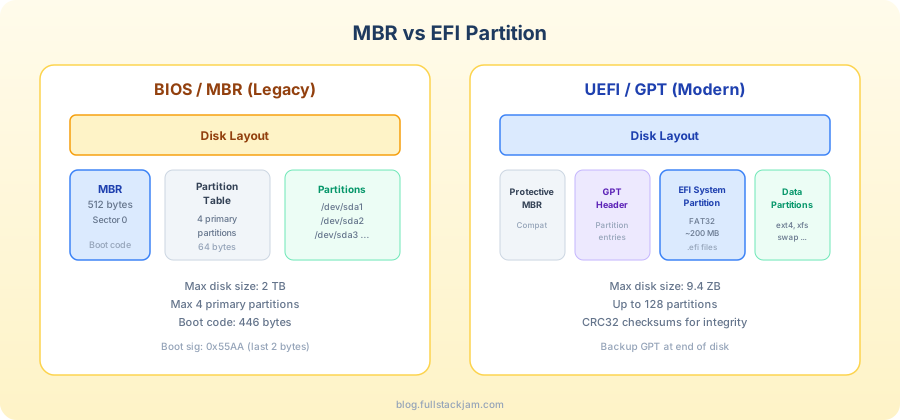
MBR (Legacy)
The MBR occupies the very first sector of the disk (512 bytes) and is structured as follows:
- Boot code: 446 bytes containing the first-stage bootloader
- Partition table: 64 bytes describing up to 4 primary partitions
- Boot signature: 2 bytes (
0x55AA) marking the disk as bootable
MBR limitations: maximum 2TB disk size, maximum 4 primary partitions (you can work around the partition limit with extended partitions, but it's a bit of a hack).
GPT (Modern)
GPT (GUID Partition Table) is part of the UEFI specification:
- Supports up to 9.4 ZB disk size (effectively unlimited)
- Up to 128 partitions
- CRC32 checksums for data integrity
- Backup GPT header at the end of the disk for redundancy
- Includes a Protective MBR for backward compatibility
Boot Loader in Action
The most common Linux boot loader is GRUB (GRand Unified Bootloader). Its job happens in two stages:

BIOS/MBR Path
- Stage 1 -- The 446-byte boot code in the MBR is loaded into memory. Its only job is to find and load Stage 2
- Stage 1.5 -- Lives in the gap between the MBR and the first partition. Contains filesystem drivers so Stage 1 can read the
/bootpartition - Stage 2 -- The main GRUB installation, living under
/boot/grub/. Displays the boot menu, lets you pick an OS or kernel version
UEFI/GPT Path
- UEFI firmware reads its Boot Manager configuration and knows where to find the EFI application
- The EFI System Partition (ESP) stores
.efiboot files, such as/EFI/ubuntu/grubx64.efi - GRUB's EFI version is loaded and presents the same boot menu
Regardless of the path, GRUB ultimately loads the kernel image (vmlinuz) and initramfs into memory.
Other Boot Loaders
GRUB isn't the only option:
- ISOLINUX / SYSLINUX -- Used for bootable CDs and USB drives
- U-Boot -- Common on embedded devices (Raspberry Pi, routers)
- systemd-boot -- A simpler UEFI boot manager
- rEFInd -- A graphical UEFI boot manager
Kernel Loading and Initialization
Once the boot loader has placed the kernel and initramfs into memory, it hands control to the Linux kernel.

Key Steps in Kernel Startup
- Decompression --
vmlinuzis a compressed kernel image (the "z" stands for zlib/gzip; modern kernels also support zstd). It first decompresses itself into memory - Memory management init -- Sets up page tables, the MMU (Memory Management Unit), and the virtual memory system
- Hardware initialization -- Configures CPUs, interrupt controllers (IRQ), timers, PCI bus, ACPI power management
- Built-in driver loading -- Drivers compiled into the kernel (not as modules) are initialized at this stage
- Start PID 1 -- Mounts the initramfs, executes
/sbin/init
Kernel Subsystems
The Linux kernel isn't a single program -- it's a complete operating system core with several major subsystems:
- Process management -- Scheduler, fork(), threads, signal handling
- Memory management -- Virtual memory, page cache, swap
- VFS and filesystems -- Unified interface for ext4, XFS, Btrfs, etc.
- Networking stack -- TCP/IP stack, socket layer, netfilter firewall
- Device drivers -- Loadable kernel modules (
.kofiles) - System call interface -- The bridge between userspace and kernel
- Security modules -- SELinux, AppArmor access control frameworks
initramfs: The Initial RAM Filesystem
This is one of the more clever parts of the boot process. When the kernel first loads, it doesn't know where the real root filesystem is, and it may not even have drivers for the storage hardware. initramfs solves this chicken-and-egg problem.

How initramfs Works
- Extract -- The kernel unpacks the initramfs (a cpio archive, usually gzip or zstd compressed) into a tmpfs in memory
- udev device detection -- The udev daemon scans hardware, loads necessary driver modules, and creates device nodes under
/dev - Mount root filesystem -- Based on the kernel parameter (
root=), finds the root partition, runs fsck if needed, mounts it read-only - pivot_root -- Switches the mount point to the real root filesystem, frees initramfs memory, and executes the real
/sbin/init
What's Inside initramfs
The initramfs is essentially a minimal Linux system:
/bin,/sbin-- Basic utilities (often stripped-down busybox)/lib/modules-- Storage controller and filesystem drivers/etc-- udev rules, modprobe configuration/scripts-- Init scripts and hook functions
You can inspect your system's initramfs with lsinitramfs (Debian/Ubuntu) or lsinitrd (RHEL/Fedora).
init Process and systemd
Once the root filesystem is mounted, /sbin/init runs as PID 1 -- the ancestor of all userspace processes. On modern Linux distributions, /sbin/init is actually a symlink to /lib/systemd/systemd.

From SysVinit to systemd
Traditional SysVinit managed services using runlevels and shell scripts. It was serial -- one service had to finish starting before the next could begin. On modern multi-core machines, that's a lot of wasted potential.
systemd is now the standard across major distributions. Its key improvements:
- Parallel startup -- Services without dependencies start simultaneously
- Declarative configuration --
.service,.timer, and other unit files replace shell scripts - On-demand activation -- Through socket activation, services only start when first accessed
- Unified logging -- journald centralizes logs from all services
systemd Targets
systemd replaces runlevels with targets:
| SysVinit Runlevel | systemd Target | Description |
|---|---|---|
| 0 | poweroff.target | Shutdown |
| 1 | rescue.target | Single-user / rescue mode |
| 3 | multi-user.target | Multi-user text mode |
| 5 | graphical.target | Graphical desktop |
| 6 | reboot.target | Reboot |
Essential systemctl Commands
# Service management
sudo systemctl start httpd      # Start a service
sudo systemctl stop httpd       # Stop a service
sudo systemctl restart httpd    # Restart a service
sudo systemctl status httpd     # Check status

# Boot configuration
sudo systemctl enable sshd     # Enable at boot
sudo systemctl disable sshd    # Disable at boot

# Target / runlevel
systemctl get-default           # Show default target
sudo systemctl set-default graphical.target  # Set default target

# Logs
journalctl -u sshd             # View logs for a service
journalctl -b                  # View current boot logs
journalctl -f                  # Follow logs in real time
Linux Filesystem Basics
Filesystem Types
Linux supports a wide variety of filesystems:
Conventional disk filesystems:
- ext4 -- The most common Linux filesystem. Stable, reliable, supports up to 1EB filesystem and 16TB individual files
- XFS -- High-performance filesystem, great with large files. Default on RHEL
- Btrfs -- "Next-generation" filesystem with snapshots, subvolumes, transparent compression, and more
Flash storage filesystems:
- UBIFS / JFFS2 / YAFFS -- Designed for NAND Flash with wear-leveling in mind
Special-purpose filesystems:
- procfs (
/proc) -- Virtual filesystem exposing kernel and process information - sysfs (
/sys) -- Device and driver information - tmpfs (
/tmp) -- Memory-backed temporary storage, lost on reboot - devtmpfs (
/dev) -- Device nodes
Partitions vs Filesystems
These two concepts often get confused, but the distinction is simple:
- A partition is a physically contiguous section of a disk
- A filesystem is the method of organizing and storing files on that partition
Think of it this way: a partition is an empty room, and the filesystem is the shelving and organization system you put inside it.
| Windows | Linux | |
|---|---|---|
| Partition | Disk 1 | /dev/sda1 |
| Filesystem | NTFS / FAT32 | ext4 / XFS / Btrfs |
| Mounting | Drive letter (C:, D:) | Mount point (/home, /boot) |
| Root | C:\ | / |
The Filesystem Hierarchy Standard (FHS)
Linux uses / as the path separator (Windows uses \) and has no concept of drive letters. All disks and partitions are mounted as directories within a single unified directory tree.
Key directories:
| Directory | Purpose |
|---|---|
/ | Root directory, the starting point for everything |
/boot | Kernel and bootloader files |
/home | User home directories |
/etc | System configuration files |
/var | Variable data (logs, caches, etc.) |
/tmp | Temporary files |
/usr | User programs and libraries |
/dev | Device files |
/proc | Kernel/process virtual filesystem |
/sys | Device/driver virtual filesystem |
Removable media (USB drives, optical discs) are typically auto-mounted at /run/media/username/disklabel on modern systems, or under /media/ on older distributions. For example, if your username is student and a USB drive is labeled FEDORA, it would appear at /run/media/student/FEDORA.
Wrapping Up
The whole thing is really just a relay race: firmware brings the hardware up, GRUB finds the kernel and loads it into memory, the kernel initializes the OS core, initramfs mounts the real root filesystem, and finally systemd takes over to start services.
Once you've traced this chain, problems like GRUB rescue, kernel panics, or a service that won't start are a lot less mysterious — at least you know which leg of the race it stalled on.